
How to set up a unified inbox for multiple IMAP accounts on Windows
Connect separate IMAP mailboxes on Windows, configure secure SMTP for each sender and verify what your unified inbox shows.
To set up a unified inbox for multiple IMAP accounts on Windows, add each mailbox to your desktop email client using its own incoming IMAP and outgoing SMTP settings. Check that each account can receive and send from its own address, then open the client's combined inbox. The combined list gives you one place to scan new mail while leaving each mailbox and its folders at its provider.
This setup suits a freelancer managing an address on a hosting account and another on a separate mail service. It also suits someone managing several addresses on the same host. The connection procedure is one mailbox at a time in both cases. Even when two addresses use the same server name, they may have different credentials, folder names, sending permissions and storage limits.
Count your mailboxes before you configure them
Say you want to combine hello@example.invalid and orders@example.invalid. Sign in to the provider's webmail for each address and find the Inbox and Sent folders. If you can sign into two separate mailboxes, plan for two connections. If orders is an alias that delivers to hello, configure the hello mailbox and check the provider's policy for using orders as an outgoing identity. An alias can receive mail without having credentials or a folder hierarchy of its own. The same check applies to an address set up as a forwarder.
Note who supplies each mailbox. Your domain registrar, website host and email provider can be different businesses. A custom domain in the address tells you where people send mail, but the desktop client needs the provider's documented server names. A mailbox can also move to a new provider while keeping the same address. If you find conflicting setup instructions, use the ones from the service where the mailbox currently lives.
For an organisation-managed account, ask whether the mailbox can use IMAP and authenticated SMTP and what authentication method it requires. Access to webmail establishes that the account exists and can open online. Mail protocols can have their own controls. If your service uses a provider-specific sign-in flow, check that your client supports it. For two Google-hosted mailboxes, use the guide to multiple Gmail accounts in one Windows inbox.
Collect incoming and outgoing settings for every address
IMAP lets the app retrieve messages and work with folders and message state on the server. SMTP submission lets it send mail through a server that accepts messages from your account. Entering correct IMAP settings can make Inbox work even if the SMTP settings are incomplete. Treat receiving and sending as two separate checks for each mailbox.
Open your provider's Connect devices, Mail client setup or similar page for the specific address. Make a small setup list with the following values. Keep credentials in a safe place separate from any checklist or support ticket you share.
| Value to record | What to check |
|---|---|
| Email address | Record the mailbox's full address and confirm that it can sign in to webmail. |
| Incoming mail | Record the IMAP hostname, port, connection security and required authentication. Implicit TLS on port 993 is a common combination. |
| Outgoing mail | Record the authenticated SMTP hostname, port and security. Port 465 commonly uses implicit TLS, and port 587 commonly uses STARTTLS. |
| Usernames | Check both incoming and outgoing. The full mailbox address is common, but the provider specifies the format. |
| Credentials | Check whether the service expects the mailbox password, a provider-issued app password or an authorisation flow. |
| Sending identities | Find which From addresses the SMTP account permits, especially if you plan to send as an alias. |
Implicit TLS starts encryption as the connection opens. With STARTTLS, the client and server begin the connection and then negotiate TLS before protected communication. Match the provider's hostname, port and security as a set. A failure on port 465 with STARTTLS can be a mismatch in connection settings even if the username and password are fine. Use the exact documented hostname and keep certificate checks enabled. If the server's certificate is for a different name, check whether your provider gave you its shared service hostname instead of a name under your domain.
cPanel users can open Email Accounts and find Connect Devices for the address they intend to add. Use the secure settings it prints for that address. The names in online examples are examples, even when a guide uses the same hosting software. See how to set up cPanel email on Windows for the provider-specific steps. If you are replacing mail previously copied into Gmail, read the guide to alternatives to Gmail POP fetching before changing any existing forwarding or import arrangements.
Add one mailbox and follow a complete test message
- Start with the mailbox you know best. Add it as IMAP in the desktop app. Enter its incoming settings, then add its outgoing SMTP details. When an app asks whether outgoing mail needs authentication, use the provider's documented option and verify which account credentials it expects.
- Check direct delivery before you open Unified. Send a plain-text message from a separate mailbox you control to the address you just added. Give it a distinctive subject, such as IMAP test 1 hello. Look for it in the provider's webmail and in the desktop app's individual inbox. The two views should show the message under the same account.
- Verify the outgoing message where it lands. Reply from the desktop inbox. Check the full From address in the composer and then at the third mailbox. Send a fresh message as well if you regularly start new threads. The address selected for a new message can follow the currently selected mailbox or app preference.
- Look up the Sent copy in webmail. Search for the unique test subject in the account's Sent folder after checking recipient delivery. If the message arrived but the copy is missing, investigate Sent filing before you send again.
- Test one state change. Mark the incoming test unread in the desktop client, then refresh webmail and compare. Check the same message by subject. When your daily work includes Archive or moving to a folder, try one of those actions using expendable test mail and verify the destination.
Run the same test for the second mailbox with a different subject, such as IMAP test 2 orders. Even if the provider and ports match, check its own address in the composer and verify that the right Sent folder holds its message. A successful test with the same credentials as the first mailbox could hide the fact that the second identity is still missing. If they use different providers, compare each address only against its own webmail. That gives you a known working path for each mailbox before you combine views.
If you manage three or more accounts, write down an outcome for each incoming test, outgoing test, Sent lookup and state change. Stop adding accounts while you diagnose a failure that affects the one you are working on. You can leave other working connections in place. Retest with a new subject after fixing the server settings so you can distinguish the new delivery from an older message that happened to sync later.
Open Unified and check what the view contains
Once the accounts work individually, open the unified inbox. Look for the two test subjects in the same list with the correct receiving mailbox on each. Verify that switching back to an individual Inbox gives you the messages for that source. If you have a saved subset or a filter such as Unread enabled, open the all-accounts, all-messages inbox view for your test. A perfectly healthy mailbox can disappear from the screen because the current view excludes it.
Unified commonly combines the inboxes. Folder access and search coverage depend on the client and selected view. If a provider-side rule sends receipts to a folder and skips Inbox, check that folder directly. If you need to refer to outgoing mail often, open the original mailbox's Sent folder. Treat the unified list as a way to work through new arrivals and use the underlying mailboxes whenever the folder is part of the task. Try one real workflow, such as opening a support request, replying from the support address and confirming the copy where you would expect to find it next week.
Two legitimate copies can appear when someone sends one message to both addresses or when one address forwards to another. Inspect the account shown on the row before deciding which copy to reply to or move. Another source of apparent duplicates is folder coverage. If a client searches across multiple folders, a separate copy of a message moved or copied by a rule may also match. Open each result in its own folder before deleting a copy. Deletion and folder moves can affect what other devices see after sync.
Swftink shows the receiving account in Unified and lets you open the original mailbox from the mailbox picker. Its saved views let you group selected accounts, for example a collection of addresses for customer enquiries. If you handle customer mail in the morning and finance mail later, open the saved group you intend to work on before selecting several rows. In Swftink, replies use the account that received the message. When starting a new message, review From before sending, especially if two mailboxes share a display name.
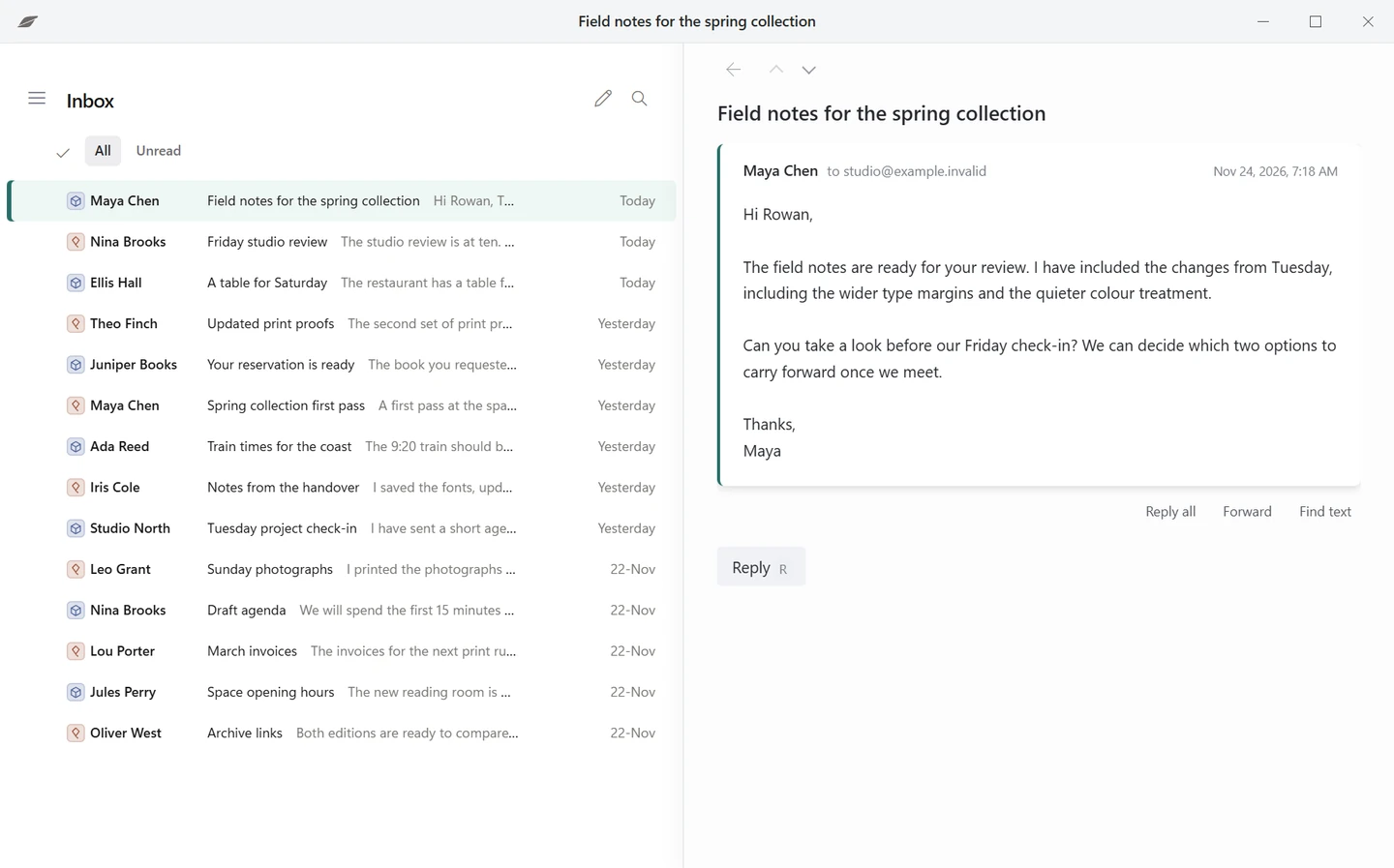
The account icons distinguish messages from the two example IMAP mailboxes. The open message shows its receiving address in the reading pane.
Try the folder workflow you need on a second device too. For example, make a temporary folder in the provider's webmail, move a test message there from your Windows client and look for it on your phone. If webmail shows the move but the phone never displays the folder, first check whether that device shows all folders or only those you subscribe to. If webmail also lacks the move, check which folder the Windows app used. A local folder can look similar to a provider folder in a long list. Keep messages that must follow you across devices in folders you can see in webmail. When the checks finish, move your test message out before cleaning up the temporary folder so you can still use the subject to track the result.
Diagnose the symptom before changing settings
Webmail has the message but the desktop inbox is empty
Check whether one recent message is missing or the entire inbox is empty. If everything is absent, check the exact IMAP hostname, port, TLS mode and mailbox username against the provider's instructions. Check whether the provider requires an app-specific credential or permission to connect. If recent messages arrive and an older message is absent, look at the matching account and folder in webmail. The desktop app may still be catching up or may be set to keep a shorter history. Verify whether the missing message can be found in a folder view or an online provider search.
If the individual inbox has the test but Unified lacks it, check the current view and inbox filter. If neither webmail nor the app got the test, trace delivery using the account where you sent it. Check the spelling of the recipient, any bounce, and the destination mailbox's Spam and folders. Changes to desktop IMAP settings affect how the client sees mail a server already has. Start with delivery to the provider if the message never arrived there.
Inbox works but SMTP rejects a send
Read the rejection before changing the password. A failure to connect can point to a hostname, port, network or TLS error. A login refusal points to the SMTP credentials or authorisation. A sender refusal can mean that the SMTP account does not permit the From address you picked. A rejection for a particular recipient can be tied to that recipient even when the account can send elsewhere. Try a harmless test to your own working external address with the intended From selected. Keep what you tell the provider limited to the error, port, server and test details they need.
If the app loses the connection while submitting and cannot report the result, look for the unique subject in the recipient inbox, Sent and any provider logs you can access before you resend. A client can lose contact after the server accepted a message. The recipient might also see a delay, or the test might land in Spam. Let the evidence guide whether to retry. A confirmed rejection is easier to act on than a send whose result is unknown.
The recipient gets mail but Sent is empty or has two copies
There are two separate observations. The recipient got the message, and the mailbox may or may not have filed a copy where you expect. Start by checking webmail for similarly named folders such as Sent and Sent Items in the same account. Allow time for your provider and app to sync. Some systems save Sent mail on the server and others rely on the client to file a copy. If both save one, two copies in Sent can accompany a single delivery. If the app offers a Sent folder setting, check it against the provider's instructions.
Swftink can submit mail even if it cannot identify or write the IMAP Sent folder. If SMTP accepts the message and filing fails, Outbox indicates it was sent and the Sent copy still needs attention. Retrying the filing leaves delivery alone. If you need help from the provider, give them the names of the relevant folders and the observed delivery or filing error. A second delivery test with its own subject can help after the folder issue has been resolved.
Check history, search and offline use with real examples
Choose one recent message and one older message for each account, then decide what you expect to find offline. Suppose you rely on last winter's orders from a job site. Search for a word from the order's body while connected, note its source account and confirm you can open the complete text. Check the app's download or history settings for that account and let any background work finish. At a convenient time disconnect and repeat the search in the scope you would actually use. A subject that appears on a cached row gives you less information than a body you can open without a network.
If an older message is missing offline, first find it in webmail and check which folder holds it. Compare that folder with what the desktop client keeps locally. If you plan to change how much is stored, consider the amount of mail in all connected accounts and the available drive space on the Windows PC. Start with the history you need for a real task and check the result before increasing it. See how to use email offline on Windows for a complete worked check across recent and older mail.
When a local result and a provider search differ, include the account, folder and date in the comparison. Provider search can check mail beyond the local history while you are connected, depending on the client and service. Even a successful server search leaves the question of which messages have been saved for offline use. If you switch clients, confirm important mail and Sent copies are visible at the providers first. Save any local-only drafts or queued work you still need before removing the original profile or disconnecting accounts.
Move from a forwarding setup without losing track of replies
Suppose orders currently forwards into hello and you want to connect both mailboxes directly. First confirm what happens to a message sent to orders. Look for the original in the orders provider's webmail and the delivered copy in hello. If orders does not keep an original, connecting it in the desktop client may leave you with an empty Inbox there. Check the provider's settings for keeping a mailbox copy before you change where you read orders. An address configured solely as a forwarder may need a mailbox provisioned before it can be used this way.
Leave forwarding in place while you connect and test the accounts. Save an example of the old delivery path by writing down its subject and which inboxes show it. Once both mailboxes receive and send their own tests, decide whether you still want hello to receive those duplicates. If you turn forwarding off, send a new test to orders and verify it arrives there. Then reply from the orders mailbox and verify the sender at the receiving end. Previously forwarded copies in hello can still be useful for reading older threads. Open the orders account when you need to send the next message from that address or keep the outgoing copy with newer orders. Check whether anyone else relies on the forwarded copy before changing a shared rule.
Try the setup in Swftink
The invited Swftink Windows beta supports direct IMAP with authenticated SMTP. In the app, sign in to Swftink and open Add mailbox for each address. Use a provider configuration with implicit TLS for IMAP. For SMTP, Swftink uses implicit TLS on port 465 and STARTTLS on other ports. If your provider documents a different required combination or a sign-in method the setup cannot use, ask for a supported option before moving your day-to-day work.
The public beta requires x64 Windows 10 or 11 Pro, Enterprise or Education with Encrypting File System enabled and a Windows profile on a fixed local NTFS drive. Windows Home lacks EFS. Swftink uses EFS to protect its local application-managed mailbox data. You can see attachment filenames and forward the message text in this edition. Use your provider's webmail to open, download, send or forward the files themselves.
If you have an invitation code, get the app from the Swftink download page. If you are waiting for access, you can join the Windows beta waitlist. Keep each provider's webmail available for your acceptance checks. After both inboxes work individually, check that Unified shows the two test rows with the correct addresses and open the individual Sent folders to verify the two replies.