
How to search email on Windows
Find a message on Windows in Outlook, Gmail, Thunderbird or Swftink. Choose the mailbox, scope and search field for the clue you have.

Open the Windows email app or webmail for the mailbox you want to search. Click its search box, enter a distinctive word from the subject or message, then check the search scope above the results. Start in a single mailbox if you recognise the receiving address. Search a specific folder when you know where the item was filed. The Windows taskbar can launch your mail app, and File Explorer can find a document you already saved to the PC. Search inside the mail app or provider website when you need the original email and its context.
Pick the search box for the job
The search box determines which mail can appear. A laptop can have Microsoft Outlook open to a company account, Gmail open in a browser profile for a personal account, and a desktop client with a subset of messages from both. All three search boxes can say “Search” while working with different mail. First identify the account address printed next to the folder list or under the account menu. If the address belongs to a different account, switch before changing the query.
| Situation | Where to start | What to check |
|---|---|---|
| Recent company email and Outlook is already open | Outlook search at the top of the window | Current mailbox and any folder or date filter |
| Old Gmail message on a newly configured PC | Gmail in a browser with the intended Google account | Whether the mail is archived, sent, in Spam or in Trash |
| A particular Thunderbird folder has hundreds of items | Thunderbird Quick Filter in that folder | Selected fields and any filter carried from a different folder |
| Only a year or recipient comes to mind | The mailbox app’s advanced filters | Sent or received direction and a broad date window |
| No connection and the message was saved in Swftink | Swftink search in the relevant view | Whether the body or some message details are available locally |
| You already saved the PDF under a different name | File Explorer and the download location | The extension, modification date and file contents |
When the email belongs to a work or school account, use the account and web link provided by your organisation. Personal Outlook.com and Outlook for work can have similar screens. In Gmail, selecting a different browser tab may also select a different signed-in account. A display name used on both accounts is weak evidence of mailbox identity. Hover over or open the profile menu and read the full address. If you use separate browser profiles, check the mail identity even when the browser profile name looks familiar.
Turn a memory into a useful clue
Picture an email with the subject “Access arrangements for Linden studio” and a body that mentions “loading entrance closes at six”. The coordinator has since changed jobs. Start with Linden. It is short, distinctive, and may match either subject or body. If several projects appear, refine with the subject field or the phrase loading entrance. If a more recent set of instructions mentions access arrangements too, use the sender or approximate date to identify the correct version.
An agreement number such as LS-4826 can be even better, especially when orders arrive every week from one address. If the full code returns nothing, try the portion that survives punctuation changes. A sender may write LS 4826 in an email and LS-4826 on its document. Another system might drop the letters. Keep the original reference visible while experimenting. A shorter number may also appear in a price, an unrelated delivery, or a customer record, so verify the full identifier in the actual message.
Some clues travel badly between interfaces. Your contact book may display “Venue Desk” while the mail came from bookings@linden.example. A client may show a nickname for the same address. When a name adds results from signatures and forwarded replies, use the sender filter or paste the complete address. When no results appear, check a related message for an automated sender or shared team address. You can widen the sender selection without broadening the subject at the same time.
| Clue | First test | Useful adjustment |
|---|---|---|
| Unusual project name | One word such as Linden | Choose the subject field if results from the body overwhelm the list |
| A sentence you remember | Two adjacent distinctive words | Remove quotation marks if punctuation or line breaks might differ |
| A tracking reference | Complete code | Try the most distinctive part, then verify the whole code in the message |
| A person who sent it | Full sender address | Try a shared team or notification address |
| A document name | Filename stem | Use attachment filtering in an interface that supports it |
| Last month or last quarter | Date range plus one clue | Start wide, then tighten the earlier or later boundary |
Avoid putting every detail into the first query. “June Linden invoice final PDF” is fragile if the subject says “Statement”, the filename says “revised” and the month appears only inside the document. A one-clue search gives you a baseline. Add a second constraint to reduce the results and compare. If nothing remains, remove the last constraint. You have learned something about that condition without losing all previous candidates.
Search email in Outlook for Windows
Use the search box at the top of Outlook. Enter a word, name or phrase and press Enter to inspect the result list beyond any suggestions. For the Linden message, start with the project name in the correct mailbox. Outlook can search multiple fields for a general keyword and may find the word in content or a supported attachment. If meeting or contact results get in the way, return to Mail and focus on mail results.
In new Outlook, use the advanced search filters to specify a folder, sender, subject, date or attachment where supported. A helpful second pass for this example is the Subject field containing Linden. If you suspect the message was filed under a shared work address, switch to the account or folder that received it. Check the scope after changing the active mailbox. The From filter describes the person or system that sent the email. The scope determines which account’s copies Outlook checks.
Classic Outlook provides scope choices such as Current Folder, Current Mailbox and All Mailboxes, depending on the setup. Select the project folder and use Current Folder when you know where a colleague filed the report. Expand to Current Mailbox when a rule might have moved it. Use All Mailboxes when you are uncertain which account received the email and the account is included in that search. Check for a scope or limit before concluding an older message is absent.
Classic Outlook and new Outlook arrange their controls differently. For a workflow you can repeat, use the filters shown in the application. Microsoft’s help provides separate instructions for each. Look for the Close Search or clear control after the task. Leaving narrow filters enabled can make the next item seem absent even after you change the visible search text.
Compare two plausible Outlook results
Suppose Outlook shows “Linden Studio arrangements” dated June 8 and “Linden Studio arrangements” dated June 10. Open both and compare the individual dates and senders. A reply that quotes the June 8 rules might mention the old gate code, while the June 10 email updates the instructions. Use the current instruction or amendment in the message itself. If you copy the detail into a calendar event, note the original email date and account so a colleague can trace it again.
If a suggestion shows a person instead of the message list, run the keyword as a mail search. For repeat correspondence, the From filter reduces matches where the person appears only in a signature or quoted block. When the distinctive term is in a body and a third party may have forwarded it, keep the sender field empty on the first pass. Read the sender line of the promising hits. That observation can be stronger evidence than a name remembered from several months ago.
Search Gmail on a Windows PC
Open Gmail in the browser, select the account that owns the mail, then type a distinctive clue in the search box. The search options button offers fields for sender, recipient, subject, words and date, plus other controls for refining what is searched. For the Linden message, enter Linden as a general term on the first pass. If there are too many hits, try subject:Linden. To retrieve a remembered phrase, try "loading entrance" in a separate search.
If a different person later forwarded the rules, search the phrase before setting the sender. Gmail can show a matching conversation with several messages. Expand individual items to verify which one contains the clue. Look for the top-level sender and date on the item you plan to use. A conversation title often survives through many replies even when details about the appointment changed.
Standard Gmail search can find mail away from Inbox. An archived message stays under All Mail. If you specifically want to narrow to archived mail, Google documents in:archive. If there is a reason to include Spam and Trash, use in:anywhere. Match dates and participant information before using an item found in Spam as the source for a booking, invoice or change of details.
A Gmail tab also gives you an independent comparison against your desktop app. If Gmail shows the complete June 8 message and the local app shows nothing, keep the message open in the browser while checking the app’s active mailbox and folder. If both interfaces miss it, test for a familiar message in the same account. A known positive result is an easy way to catch an accidentally switched account or leftover filter.
Search Thunderbird by folder or across the index
Thunderbird offers Quick Filter for the current message list and Global Search for broader indexed mail. If the subject is likely in a folder called Studio Bookings, open the folder and use Quick Filter. Select Subject if you already expect a large list. Add Body when the title is generic and the project name was inside the message. Picking the right field can save more time than guessing forms of a common keyword.
When the filing location is unknown, begin with Global Search. Thunderbird opens results in a search tab and provides filters for narrowing the list. Start with a distinctive word, then restrict by information you are confident about, such as the contact. If only a few recent candidates appear, verify the folder and synchronisation settings for the older email. Global Search relies on searchable data being available to its index.
Quick Filter controls can persist when you switch folders. If a recently opened folder looks surprisingly empty, clear the filters and make sure the normal list returns. If Global Search misses a phrase visible in a message, test the subject in Quick Filter for the open folder. Comparing the two tells you whether the folder contains the message and whether to inspect the global index. The provider’s webmail makes another independent check when online.
Consider a separate result named “Room reset”. You only remember the coordinator gave instructions about a flight case. A subject-only filter for flight case will miss the message. Quick Filter with Body enabled in the right folder can use that clue. If the folder contains only locally available headers for older items, check the same message online so you can see whether it refers to the equipment case or a facility document.
Search saved mail in Swftink
Use Swftink’s Search mail button. Enter a simple term such as Linden, then try subject:Linden to narrow it. Start in Unified to look through eligible saved messages from connected inboxes. Select one mailbox first when you know where the email arrived. The search uses the current view. If you are in a view for unread or starred mail, return to Inbox for a read or unstarred message.
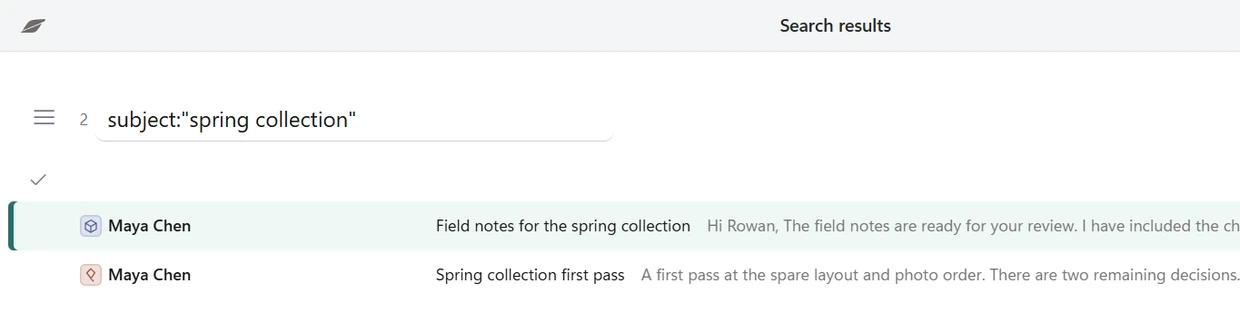
A subject filter in Swftink finds two saved messages with the phrase “spring collection” in their titles.
An unqualified term can match the sender, subject, recipient details or saved body text. The app may show Searching saved messages… while it checks bodies saved on the PC. Use subject:Linden first if that word should be in the subject. If the message title is generic, try "loading entrance" against saved content. When filter help says a field needs cached message or attachment details, the result depends on that information being available for the message.
If the search has no matches and you are online, use Search this mailbox on the server for the eligible current account. From Unified, choose Choose a mailbox to search and then select the account. Check the folder selector and the syntax supported by the online provider. Generic IMAP search in this view takes the entered query as plain text for the selected folder. For the studio enquiry, enter Linden without the subject operator and choose the folder that might hold the old message.
When offline, try a term in a message you expect to be saved. If it appears, changing the next query or scope may help find the missing item. An old message kept only by the provider requires a connection. If you need directions for a visit before you travel, confirm the relevant email opens. Use webmail to obtain a needed attachment in the current public edition while you still have a connection.
Walk through a lost booking confirmation
A colleague asks for the reference for a site visit they believe was arranged toward the end of August. You remember prior access in the instructions and a venue name that could refer to any of four rooms. You have a work Outlook account and a personal Gmail account. Your search is complete when you verify the confirmation that names the right visit and gives its current reference.
- Open the work mailbox and search for prior access. Use the whole mailbox if you are unsure whether the confirmation was filed. If you mainly find policy documents, search for the venue in Subject.
- Open a promising confirmation. Find the sender address used by the booking system. Search by that sender with a date window covering late August and the first few days of September, since the visit and sending dates could differ.
- If several visits remain, compare the visiting party, room and site address. Calendar dates can reflect a rescheduled visit. Find the message that says the reference is confirmed or updated, then compare it against the previous instructions.
- If few relevant items appear in the work account, check evidence for the personal one. The booking system may have used an address already registered for a previous site visit. Search the correct Gmail account by the venue name before narrowing.
- When only a forwarded copy turns up, expand the original text. Check the recipient and date in the quoted original details. Use them to find the original if you need its separate headers or attached form.
The first hit is a candidate. The date, room, site address and reference establish whether it concerns the same visit. When plausible messages are few, it is quicker to compare two or three than to invent a complex query that forces one result. Confirmation wording usually matters more than the sort order. An older confirmation might describe the correct visit even when the latest email in the thread asks about catering.
Decide what to change when the first search misses
If a short query returns dozens of matches, add one constraint. If it returns none, widen the scope or shorten the clue. If you can find recent mail from the sender but no older messages, test a known old email in webmail. If an index or cached lookup is still running, wait for it to finish before changing accounts or assuming the item is gone. Keep track of which interfaces you used, especially when several similar mailboxes are open.
A list can also seem empty because a previous search mode is still in effect. Check for a folder label or filter chip. Check whether you chose a recipient search for an incoming email or a sender search for your own reply. Try Sent for a message you wrote. Gmail and other apps may combine individual replies under the same conversation, so inspect the message direction inside the thread when it matters.
If the first clue produces nothing and you have a second memory of the same exchange, choose one from a different field. For example, replace an uncertain subject with an order number, or replace an uncertain date with the receiving address from a forwarded copy. A second guess at how a project name was capitalised tests little. A known ticket number from a different document may connect directly to the message.
When you find a usable result, record the minimum context the task requires. For a booking, capture the current reference, the date and the sender. For an invoice, keep the sender, date and filename alongside the reference. If you repeat the search next month, use the mailbox and the subject or sender you verified. Those details make it easier to find the source if the same conversation later has new or different instructions.