
How to install a Windows email client and connect your first mailbox
Check Windows compatibility, choose a trusted installer or ZIP, connect your first account, and confirm receiving and sending in a controlled test.
Download your email client from its publisher or an approved store, install it in the Windows account where you will use it, and connect one mailbox to start. Leave your provider's webmail and existing client available. Your first session is complete when you can receive a fresh test message, send a reply from the right address, and reopen the app with your settings and trial draft intact.
Prepare the PC and the mailbox
In Settings > System > About, read Edition under Windows specifications and System type under Device specifications. Compare both with the publisher's requirements. Windows 11 describes the operating system generation. Home, Pro, Enterprise and Education describe editions. The system type distinguishes a 64-bit x64 machine from an ARM-based system or a 32-bit Windows installation. An x64 download and an ARM64 download are different files even when the two PCs both say Windows 11. Microsoft's Windows version and edition guide
Check the volume and storage requirement if the publisher names one. Mail clients can need space for a download, an extracted copy, an installed copy, and a profile that grows as messages sync. The size of a Setup file tells you little about the eventual space needed for your mail history. Check free space on the system drive where the application will store its data, even if you download the installer onto another drive. If the design calls for local storage, a school or company environment that redirects your Windows profile may require approval or a different setup.
For the public Swftink app, use x64 Windows 10 or 11 Pro, Enterprise or Education with Encrypting File System available on a fixed local NTFS profile drive. Windows Home lacks EFS. Check the Windows Home and Pro storage guide if the machine has Device Encryption or is managed by someone else. Check current invited-access terms and package choices on the Swftink download page.
Establish that you can use the address
In your usual browser, sign in directly to the provider's known webmail page. Confirm you can access the mailbox and your recovery method. Find Inbox and Sent, and identify an older message you can recognise later. If a provider requires app authorisation through an administrator, ask for the supported sign-in method before sharing any password with an app. Some providers allow a scoped app password for eligible accounts. Others expect a browser consent flow, and managed accounts may prohibit direct connection entirely. Google's guidance on connecting other email clients
If you use manually configured IMAP mail, obtain both incoming and outgoing settings before starting. Useful details include the account's full email address, its username if different, the IMAP host and port, the submission host and port, the required security or authentication method, and any provider limits for clients. If the address is on a custom domain, verify settings from the service hosting mail for that address. A link in a hosting dashboard may show settings specific to the mailbox. cPanel's instructions for configuring a mail client
Open a second account you control for a send-and-receive test. Keep its address handy and choose a unique subject such as “New laptop mail test.” Do this before changing any existing defaults or mailbox rules. If adding the client fails, you will have a working path to check provider status, security emails, or administrator instructions.
Choose Setup, the Store, or a ZIP
Follow the package that matches the source you intend to trust. A publisher may provide a Windows Setup executable, distribute the app through the Microsoft Store, release a ZIP with supporting files, or offer some combination. Use the current instructions for the specific edition. If you have an older installer inside a download folder, compare its version and purpose against the current page before using it. A testing or developer package may use a different update channel from the finished customer release.
| Package | What happens | Details to keep |
|---|---|---|
| Publisher Setup | Installs files and may add a Start menu entry and update mechanism | The download URL, installed edition, and account under which you ran Setup |
| Microsoft Store package | Installs through the Store and uses that app's Store listing and update path | Publisher identity on the listing and whether your organisation allows it |
| Publisher ZIP | You extract a complete application folder and start the executable from inside it | The version, where you extracted it, and which files must stay beside the executable |
A ZIP is a bundle of files. It can contain the app's executable, supporting libraries, and notices. Use Extract All in File Explorer and keep the whole extracted tree. Running the executable while browsing the compressed archive or copying just the executable to another folder can leave supporting files out of reach. For an easy-to-find entry point, make a shortcut to the executable after checking that the app opens. The actual executable should stay with its bundle. Microsoft's guide to extracting ZIP files
Swftink's customer Setup installs for the current Windows user and creates a Start menu shortcut. Its ZIP edition requires Microsoft Edge WebView2 and the Visual C++ x64 Redistributable. Extract the ZIP and keep Swftink.exe beside its _internal folder. An existing browser shortcut does not tell you which runtime is available to the app. Use the current requirement and dependency links from the publisher or Microsoft. Swftink download and setup details Microsoft WebView2 distribution guidance Microsoft Visual C++ downloads
Compare the file to the official download
Start at the publisher's known domain or the publisher's official store entry. Go to the download instructions and inspect the filename, release version, and edition. If the page links to a release host, follow its link. Search adverts, file mirrors, and repackaged “download managers” introduce a separate vendor and may supply a different file.
If the publisher provides a SHA-256 checksum, compare it with the exact file you downloaded. Windows PowerShell can calculate the digest with Get-FileHash. For a file in Downloads, the example below lets you enter its full path, so it works with versioned filenames and spaces. Compare the displayed Hash with the expected hash on the publisher's trusted page or release manifest.
$installerPath = Read-Host 'Enter the full path to the downloaded installer'
Get-FileHash -LiteralPath $installerPath -Algorithm SHA256
A matching checksum establishes that the file matches that published digest. A valid Authenticode signature, where the publisher supplies one, gives separate Windows publisher information. Use Properties > Digital Signatures when present, or PowerShell's Get-AuthenticodeSignature to inspect the signature status and signer. A checksum from the same untrusted mirror whose installer you are checking provides little independent evidence. Microsoft's Get-FileHash reference Microsoft's Get-AuthenticodeSignature reference
Read the Windows prompt before continuing
Write down the exact text if Windows, your antivirus, or a company policy stops a launch. A reputation message, a malware detection, a permissions prompt, and a missing-runtime message have different meanings. Return to the publisher's page to check whether you have the intended file. Use organisational support if software is restricted on a managed computer. Keep Windows protections in place and get a verified supported package or installation route if the file remains blocked. Microsoft's guide to App and browser control
Read any administrator prompt against the usual install process. A per-user desktop app can install in your normal account while a Microsoft dependency may need separate permission on some systems. Launching a whole email app under a different administrator account can make it use a different Windows profile and its credentials, creating confusion later when you open it normally. If an organisation installs it for you, confirm which Windows profile is intended to open the mailbox and how the app will be updated.
Install and open the app once
Finish installing through the method you chose. Open the Start entry for Setup or the Store edition. In the extracted ZIP edition, open the executable in its complete folder. If two copies are present, note which one opens your first session and give its shortcut a distinctive name. A newer Setup may have no effect on an old shortcut pointing to an extracted copy in Downloads.
The first visible screen is a helpful checkpoint. A sign-in page, sample inbox, or account setup wizard shows that the interface opened. A browser tab that asks you to continue into the desktop app is a separate stage. If nothing appears, check the Windows taskbar and notification area before launching more copies. If you see an explicit Windows compatibility or storage error, record that exact message and consult the startup troubleshooting guide.
Distinguish the app account from the mailbox
Some clients ask you to sign into an app account before connecting a provider. The app account can carry access, subscription, or sync preferences. The mailbox account controls messages. In Swftink's invited flow, sign into Swftink, redeem an access code under Settings > My Account > Subscription if you have one, and use Add mailbox to attach your first address. The access code stage does not require a payment card. Swftink Google sign-in can establish an identity before any mailbox is connected. For an eligible build and account, Gmail connection uses a separate consent step with separate access. Direct Gmail currently remains in testing. If your account cannot connect through that test flow, use Gmail webmail while you check the release and account availability. Swftink download page Swftink privacy policy
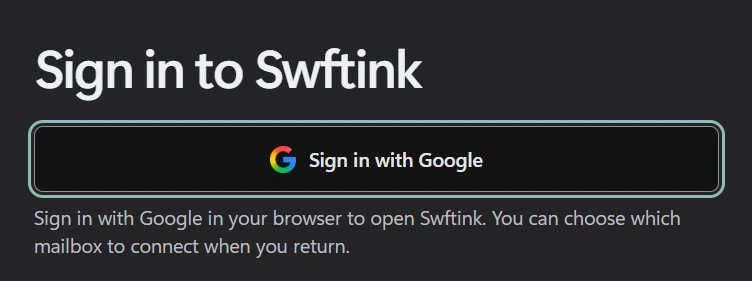
Use this screen to sign in to Swftink. The app prompts you to choose a mailbox after you return.
When the browser has several profiles, confirm the Google address on the actual consent screen. An account chooser may show a personal address, a work address, and an account left signed in from a past session. Choose according to the action you started. If you signed into the app as one address and want to attach a different mailbox, check both identities in the app before treating the combined view as correct. Avoid copying callback URLs, access codes, or consent screenshots with account identifiers into a public support request.
Connect an IMAP mailbox carefully
Enter the published incoming and outgoing settings for the mailbox. Use the provider's method for encryption and account authentication. Check the complete username and full host name, especially if several accounts share a domain. Save the account and let an initial folder list or Inbox appear. Older mail and additional folders may take longer to appear than the first page, depending on the app's sync range and provider response.
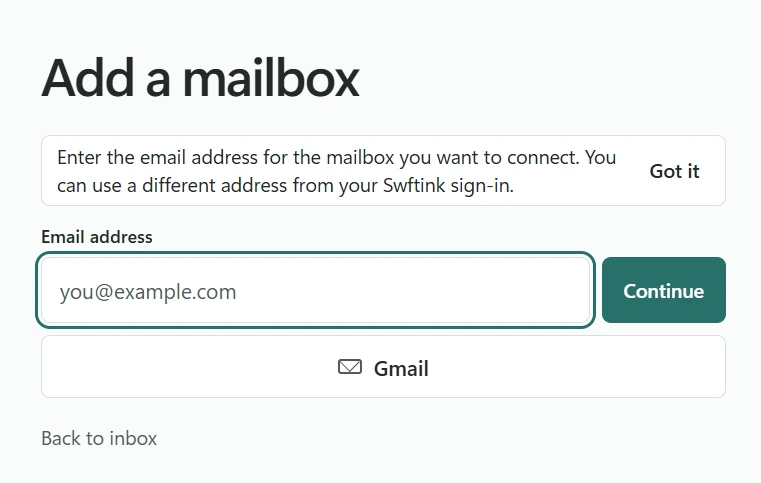
In Swftink, enter the address you want to receive mail for and choose Continue to review the connection settings.
If a certificate warning says the host name does not match, confirm the documented mail host for your address. A provider may publish a server name under its own domain instead of the name on your email address. An address that looks plausible is insufficient on its own. Record the full error text privately and check with the provider before proceeding with a connection that cannot validate the server.
For the current Swftink customer build, plan to use the provider's webmail for sending, downloading, or forwarding attachment files. In Swftink you can see the file names on received mail and forward message text. A setup test with an attachment should verify the webmail handoff you will actually use. Swftink download and current requirements
Work through an interrupted first sign-in
If the app opens a browser for sign-in and the browser says you can return, switch back to the existing app window. Starting Setup again can trigger an unrelated installation check while the first sign-in is still waiting. Verify that the browser process used the same Windows session, such as the same remote desktop session on a managed PC. Check any prompt asking which application can open the return link. If the app still shows sign-in, use its documented retry and begin a fresh request from the app. Keep the provider's account chooser open only as needed for that retry.
Sometimes a browser shows an access-denied message because the wrong account was selected or because the provider requires administrator approval. Compare the address on the consent page with the mailbox owner's address. On a managed account, note the exact requested permission and error. Ask the administrator whether the connection is permitted. Trying another download, an app password borrowed from a different device, or a consumer identity sign-in does not change the organisation's mailbox access policy. In Swftink, confirm whether the failure occurred at Swftink account sign-in or when granting the separate mailbox connection.
Work through a first connection that only partly succeeds
Suppose the app shows an Inbox as soon as you enter your provider details, but a reply you sent remains pending. Record the time, subject, and status. Compare the published submission server and authentication settings with the outgoing settings. Leave the working incoming connection alone while you correct the outgoing path. If an error says the sender differs from the authorised mailbox, use the address approved for that account and check alias permissions with the provider. Verify arrival at the test recipient once the outgoing path passes.
The reverse can happen when an outgoing server accepts a test message but incoming sync shows no folders. Confirm you connected the intended account and look for a prompt about the IMAP service. Review folder subscription if the client uses one. A mailbox can expose folders through the provider while a local view hides them. Compare one known folder name and inspect the account's uncategorised or full folder view. This keeps a navigation issue from turning into an unnecessary password reset.
If the first connection brings in thousands of old messages, let the app finish a representative sync before importing a separate archive or adding more accounts. Verify that the machine has room for the chosen history and check whether the sync progress reports connection errors or simply more work. Restart only after saving your trial draft and noting the last visible sync stage. A repeat test with a recent empty inbox can isolate startup and authentication, while it cannot explain the size or expected history of the larger mailbox.
Prove the first mailbox works
Receiving and sending use different steps. Run a small test in each direction and confirm the result at the account that received it. A first success makes it easier to add another mailbox or diagnose a failure later.
- From the second address you control, send a new message with a unique subject to the newly connected address.
- Wait for it to appear in the intended Inbox. Check the message timestamp and mailbox label. Open it once and confirm the body.
- Click Reply. Read the From field and check that it matches the mailbox you connected. Send the reply and confirm it reaches the second address.
- Open the provider's Sent view, then the client's Sent folder. Find the sent copy and note any difference in folder names or timing.
- Start a second message with short disposable text and save it as a draft. Quit the app normally and reopen it from your chosen shortcut. Check whether the draft resumed in the app and, if cross-device drafts matter, whether you can see it in webmail.
- Search for the known older message from earlier. If the app cannot find it, note the folder, date range, and whether the app can search the server. Leave bulk imports until you understand that result.
An outgoing message may reach the recipient before the app can file a copy. If you see a filing warning, check the actual delivery result and Outbox wording before pressing Send again. In current Swftink, a Sent copy retry for an already accepted direct-mail submission handles the copy separately. A confirmed rejection and an unknown submission outcome also need separate treatment. Use the exact status displayed instead of guessing from an empty Sent view.
When the test does not pass
If everything fails at sign-in, troubleshoot the account or Windows launch before retrying each folder. If the Inbox opens but sending fails, check outgoing server settings and sender permissions. If a message reaches its recipient but the app still shows an Outbox entry, first confirm whether the entry is a filing failure or a pending upload. If your new message appears in webmail but nowhere in the app, examine the connected address, folder selection, filter, and sync status.
One productive test changes one thing. For instance, switch from Unified to the named mailbox and refresh while leaving account settings alone. If the message is there, investigate account inclusion or a view filter. If it is missing in both views while present in webmail, check whether the app's sync is suspended or the provider connection expired. Recreating the account at this stage can remove local evidence and any work you saved in the trial.
Add a second address when you can repeat the process
A second address only takes a few minutes to add when you know the hostname or expected consent flow. Give each mailbox a recognisable label if the client supports it. Use different subjects for the first test in each account and send a reply from both to the same test recipient. Compare the two From addresses at the receiving end. This catches an app that defaults to one sending address across a combined view, as well as a mistaken browser account choice.
Delay changing the Windows default until daily use feels predictable. Set it when you want supported email links to open that app, and test a fresh link. If your first week still depends on the previous app for an archive or a special folder, keep its profile intact and make an explicit plan for its data before removing it. Guide to Windows default mail links Guide to preserving mail before uninstalling
Sources
- Microsoft Support on Windows version, edition and system type
- Microsoft Support on ZIP extraction
- Microsoft Support on Windows security and SmartScreen
- Microsoft Learn on WebView2 distribution
- Microsoft Learn on Visual C++ Redistributable downloads
- Microsoft Learn on file hashes
- Microsoft Learn on Authenticode signatures
- Google Gmail Help on third-party email client setup
- cPanel documentation on mail client settings
- Swftink's current download instructions