
Gmail third-party app permissions and how to remove them
Understand what a Gmail app can read, send or change. Find its Google Account permissions, remove mailbox access and deal with copies the app has already made.

To see which apps can access Gmail, open your Google Account’s linked apps, select Access to your Google Account and open See details for the app you want to check. Review the listed access for Gmail. Choose Remove access and confirm to withdraw the grant. You can keep using Gmail in your browser after disconnecting the app.
Three things can look like the same connection. You might have used Google to sign in to an app, given the app permission to handle your mail, and let it save messages for offline reading. Google Account settings control the Google links. The app controls its account, its local storage and any copies held on its servers. What you need to remove depends on which of those you want to end. Google Account Help on managing linked apps
Which Google connection did you make?
Suppose you first clicked Sign in with Google to create an account in a Windows email client. After signing in, the app opened an empty inbox and asked you to add a mailbox. The first Google request helped the app identify you. Adding Gmail prompted a second request that could give the app access to messages. The second request could also use a different Google Account, such as a work mailbox associated with a separate address.
| Connection shown by Google | What you shared | When you would remove it |
|---|---|---|
| Sign in with Google | Identity details used to create or sign in to an app account | You want to stop using Google as the way into the app |
| Access to your Google Account | Permission to use a Google service or particular data, such as Gmail, Calendar or Drive | You want to stop the app from accessing that Google data |
| Linked account | A connection that gives Google access to an account on another service | You want to stop a Google product using information or features from that service |
On Google's details page, check the direction of the connection. “Google has some access to” an app refers to Google using the other service. A statement that the app has access to your Google Account describes the permission that can include Gmail. An app can appear under more than one filter. Google Account Help on connection types
A standalone identity request may include your email address and basic profile details depending on the sign-in flow. Gmail authorization is separate from that identity access even when the app uses a Google sign-in button during mailbox setup. Look at what Google asks you to share. The Google logo and the name on the button are the same whether the app is choosing a profile or starting a request to sync mail. Google Account Help on Sign in with Google
What Gmail permissions let an app do
Google calls each defined area of access a scope. On the consent screen you usually see a description in ordinary language. A provider's documentation may also give the scope identifier, such as gmail.send. These identifiers matter when two apps use similar wording but do different jobs. A receipt organiser may need to read messages. A tool that sends alerts through Gmail may only need to send.
| Gmail API scope | What it is for | Example of why it matters |
|---|---|---|
gmail.send |
Send mail through Gmail on your behalf | A reporting tool can email its report without permission to read your inbox through this scope |
gmail.readonly |
Read messages and settings | A search tool can index message contents even though this scope gives it no write access |
gmail.metadata |
Read metadata such as labels and headers | Subject lines, senders and dates can still disclose relationships and activity even without the message body |
gmail.labels |
View and manage label definitions | Label management and access to message content are separate capabilities |
gmail.compose |
Manage drafts and send messages | A writing tool can work with drafts as well as send through Gmail |
gmail.modify |
Read, compose and send mail and apply mailbox changes such as archiving or moving to Trash | A client can keep read status and labels in sync with Gmail |
https://mail.google.com/ |
Broad Google Mail access, including immediate permanent deletion through the Gmail API | A direct permanent delete can bypass Gmail's Trash recovery window |
The table describes individual scopes. A client can ask for several scopes in one request, and the combined access can be broader than the description of any single row. gmail.modify supports moving messages to Trash. Google reserves immediate permanent deletion that bypasses Trash for the broader full-mail scope. Reading after archiving, recovering items from Trash and deleting permanently are different actions. Google’s Gmail API scope reference · Gmail archive and delete explained
Scope names tell you what Google allows. They do not show how often an app reads mail, whether it fetches the whole mailbox or searches on demand, or whether it copies data from the device to a server. An app that displays only receipts might use broad read access to find them. If your mailbox contains other people's confidential messages, the difference between the product description and the scope is relevant even when the tool is working as advertised.
A third-party client may also connect over IMAP for reading and SMTP for sending. Google supports OAuth for those protocols as well as the Gmail API. Installing a client with an IMAP account setup screen tells you how it exchanges mail. To understand the authorization, review the Google consent screen it opens and the app's documentation for that specific setup. Google's broad https://mail.google.com/ scope is used for OAuth access to IMAP, POP and SMTP. That can explain why an IMAP client requests broader access than a Gmail API tool that only sends messages. Google OAuth for Gmail mail protocols
Google classifies Gmail API scopes as non-sensitive, sensitive or restricted. gmail.send is sensitive and gmail.modify and gmail.readonly are restricted. Public apps that request restricted scopes generally need Google verification, with exceptions such as some testing and internal uses. Apps that access restricted data from or through a third-party server face additional assessment requirements. Look at the grant and the developer's privacy information together. A verification status describes Google's review of the app and the scopes at issue. Your account policy and the data you are comfortable sharing still govern your choice. Google’s verification rules for restricted scopes
How to check the app before giving it Gmail access
Start the connection from the app you mean to use. A real consent request should follow an action you recognise, such as adding your Gmail mailbox or setting Gmail as the sender for a report. On Google’s page, verify the account address, developer or app identity, and the permissions listed. If you reached a consent screen from an unexpected email or link, exit the flow and open the app directly before continuing. Google runs the sign-in and consent flow. Enter your Google password on a verified Google sign-in page when Google requests it, and keep it out of third-party app forms. Google Account Help on sharing access
Match permission to the actual feature. A full client that shows Inbox and Sent, updates labels and sends replies needs a different grant from a send-only form. For a one-off task, check whether you can supply a chosen message or file yourself instead of granting mailbox access. If the app offers a limited connection, check what that mode supports before selecting it. For example, mail you can read locally but cannot send from might be enough for a short research task and frustrating for daily correspondence.
Read the provider’s privacy policy for the route mail takes. An installed app can exchange mail directly with Google, route it through the developer’s servers, or use a mix of both. Ask where message bodies, attachments, search data and drafts are kept. A web account can help the developer identify you while a desktop app holds the mailbox data on your PC. A service that processes or backs up mail from its own server has another copy to manage. If you use the app on two computers, find out whether each stores its own mailbox data and whether one disconnect affects both.
Check which party can remove the data. A disconnect button can stop new retrieval while leaving an offline archive. An account deletion page may explain what happens to server storage and backups. See whether the app offers an export if you need to keep an independent draft or archive before clearing its data. With a work mailbox, check the organisation’s rules for keeping or exporting drafts and mail before moving a copy onto a personal device.
If Google shows a warning or blocks the request
A message that the app is unverified concerns the developer's OAuth configuration and verification status. An Access blocked page may have a different cause, including your account type or an organisation's restrictions. Copy the error wording and code while leaving out the browser URL and private account details. If the notice says the app is being tested, check whether your exact mailbox is an authorised test account. If it mentions your organisation's policy, contact the Google Workspace administrator with the app name and intended use. Google Account Help on sign-in and consent error codes
Test access is a developer-controlled invitation. An invite to use a product and approval to connect a particular Gmail mailbox can be separate. If a client allows you to create a product account but Google blocks the mailbox step, use Gmail in the browser while you confirm eligibility with the developer. Entering an app password or changing IMAP settings does not turn an OAuth Testing app into an approved client. Google OAuth app states · Adding Gmail to another email client
How to review and remove Gmail access
- Open the linked apps page on the Google Account that owns the mailbox. If you use multiple Google Accounts, check the address shown under the account selector. Search from each relevant account if a work and personal mailbox shared the same app.
- Choose Access to your Google Account. Find the app and select See details. Check which products and types of data it can access. Where available, filter by the Google product to narrow a long list. Review the developer identity if more than one app has a similar name.
- If you want to end access, choose Remove access and confirm. Read the confirmation to understand which permissions the action covers. If an app bundles Gmail with other services, removal can stop those features too. Check the details again afterward to see which connections still appear.
- Return to your mail client. If it still displays an old inbox, look at when it last synced. Verify current mail independently in Gmail on the web. Cached mail can be available even after your client has lost permission to fetch more.
- Check other connection types if you want to retire the app altogether. Stop using Sign in with Google is a different control from Remove access. Before ending your sign-in link, check whether you have another way to get into the third-party account if you need it to export data, change a subscription or request deletion.
If the app operates on several devices, one device can show data it had already downloaded while another displays a reconnect prompt. Review access at Google to confirm the grant and review storage on each device to account for those copies. If the app has a separate connection to a different Google Account, treat that mailbox separately. Google Account Help on reviewing and removing access
Some apps ask for new Google permissions when you first turn on an extra feature. For example, a client that already reads mail could request access to Calendar when you enable its calendar panel. Google lets developers combine previously granted scopes with new ones. If the app has made a combined grant, revoking that grant can end access across those services together. If you want to keep the mail feature, check how to turn off the calendar feature and whether the app can reconnect using a smaller grant. When you reconnect, check the Google consent and connection details instead of assuming the permissions are now narrower. Google OAuth on incremental authorization
What happens to your messages, drafts and copies
Revocation ends the app's access through the affected grant. Mail already present on Gmail stays subject to Gmail's normal rules. For instance, if an app previously archived a message, you can still find it in Gmail. If the app sent a message, revoking access cannot recall the recipient's copy. If the app imported messages elsewhere, those copies are subject to that service’s storage controls. Revocation also leaves previous changes to labels, inbox status and forwarding settings in place.
An email client may have local drafts or queued messages that exist only on your PC. Open Gmail on the web and compare Drafts and Sent before clearing app data. Give special attention to anything you wrote after the last successful sync. Confirm whether local drafts can be exported or copy any permitted text into a safe location first. If both a queued copy and a sent copy exist, check the recipient and timestamp before resending. For a shared PC, check which Windows profile contains the cache and whether anyone else can sign into that profile.
If the provider holds mail in a hosted account, disconnect at Google first to prevent new retrieval. Then use the provider's account controls or privacy contact to request deletion of imported mail, indexes and other retained data as applicable. Ask which copies are affected if you exported anything or enabled backups. Uninstalling a mail client removes the program and may leave parts of its data behind, depending on the application. Google Account Help on previously shared data
What to check when you don't recognise the app
An unfamiliar name might be an old integration or the developer behind a product you know. Use See details to check the access and developer before deciding. If you cannot account for the connection, remove it. Google also lists a Report this app option for suspected misuse. If messages were sent without you, Gmail settings changed or Google flagged a sign-in, use the Google Account recovery and security steps. They cover recent security events, connected devices and browser access as well as app links. Google Account Help on reporting a linked app
Check Gmail settings for unfamiliar forwarding addresses, filters and delegation too. Those settings can continue to affect mail independently of an OAuth connection. For example, a forwarding rule may send each new invoice to a second address even after you remove a desktop client's access. Review a rule before removing it so you know whether it is part of an existing workflow. Gmail forwarding and filters
Google also manages app passwords separately. An older client may have used one where Google allows that connection method. If you know that you created an app password for the device, review it under your Google Account's app password controls and revoke it where appropriate. If an email archive or imported copy is missing from the list of linked apps, it is worth checking whether you originally made it via forwarding, an export or an older connection. Removing an OAuth app only addresses that route. Google Account Help on app passwords
Work and school mailboxes
Your Workspace administrator can restrict Gmail scopes and manage which apps can access the organisation's data. An app that works with your personal Gmail may be blocked for your work address even when its public version has gone through Google verification. If the app is required for your job, provide your IT team with the app name, the Google error, the requested access if you can see it, and what the work requires. An administrator can investigate a specific app and scope, which helps avoid allowing more access than the job needs. Google Workspace guidance on controlling app access
For instance, your company might use an approved client for day-to-day mail and reject an invoice tool that needs to scan every message. An approved way of sharing selected invoices could satisfy the same business task. Use your organisation's approved app or webmail while checking. Moving work messages into a personal account to get around a block changes who holds the data and can expose messages that were subject to the organisation's policy.
For a shared or team mailbox, find out whose Google identity approved the app. If someone added the mailbox on a company PC under their own Google Account, review the linked apps under that account or ask IT to identify the app in Workspace's API controls. A supervisor checking their own personal linked apps will only see grants on that account. Administrators can see app records and requested services for their organisation and, where appropriate, allow an app to request only specified scopes using Specific Google data. If access is being retired for a team, also check who needs replacement access to the mailbox before the handover. Google Workspace Help on app access levels
How Swftink handles the two Google requests
Swftink's Google sign-in to the app account uses identity and email permissions. Adding a direct Gmail mailbox is a separate action for supported Windows editions. It asks for gmail.modify so the Windows app can read and send through Gmail and let you apply changes such as read status, stars, labels, archive and Trash. The direct Windows client exchanges mail with Google from the PC. Its Google mailbox tokens are stored in Windows Credential Manager, and it keeps synced mail, local drafts and search data in an EFS-protected Windows profile. Direct Gmail access is currently limited to approved test accounts in Google's Testing configuration. Swftink privacy policy · Google’s description of Testing
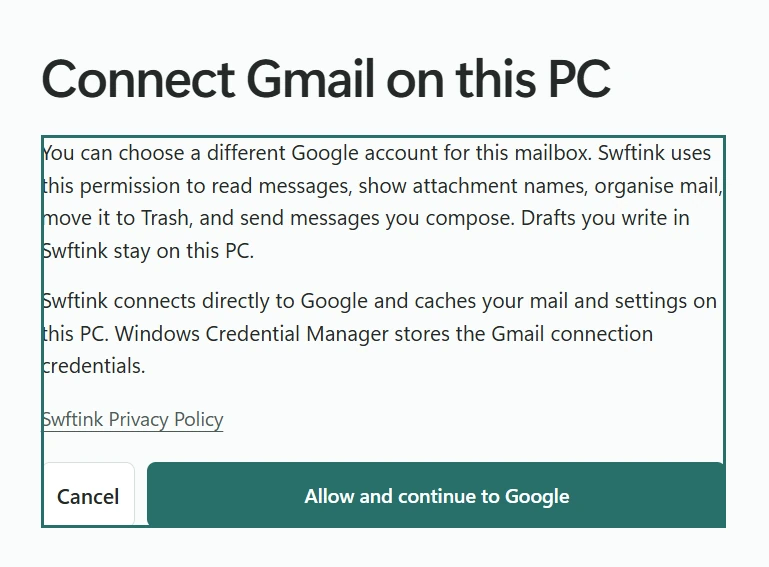
Swftink explains what it needs to access before opening Google's separate Gmail consent screen.
In the direct Windows edition, open Mailbox data and privacy from the mail accounts screen or find it with Ctrl + K. Select the affected mailbox and choose Disconnect mailbox to stop sync and request that Google revoke the mailbox grant. If Google is unreachable, use the app's retry or check the linked apps page directly when online. Swftink can keep the cache for offline access after disconnecting. Choose Delete local mailbox data if you also want to clear cached mail, local drafts and queued outbox items from the installation. Use Gmail on the web to verify the provider copies you want to keep before clearing the local data. Swftink privacy policy and removal controls
If you intend to keep a connection and it has stopped on its own, read why Gmail sync can stop after seven days before removing access or deleting the cache. Google may ask you to renew the permission while the mail already stored in Gmail is still available.
Sources
- Google Account Help on reviewing and removing linked apps
- Google Account Help on Sign in with Google
- Google Account Help on sharing access and previously shared data
- Gmail API authorization scopes
- Google OAuth for IMAP, POP and SMTP
- Google OAuth on combining permissions
- Google's restricted scope verification requirements
- Google OAuth app states and administrator overrides
- Google Account Help on fixing consent errors
- Google Workspace Help on controlling app access
- Google Account Help on securing a compromised account
- Google Account Help on app passwords
- Gmail Help on adding Gmail to another client
- Swftink privacy policy